
ENHE Tool Cover
LumiOS Personal AI Companion
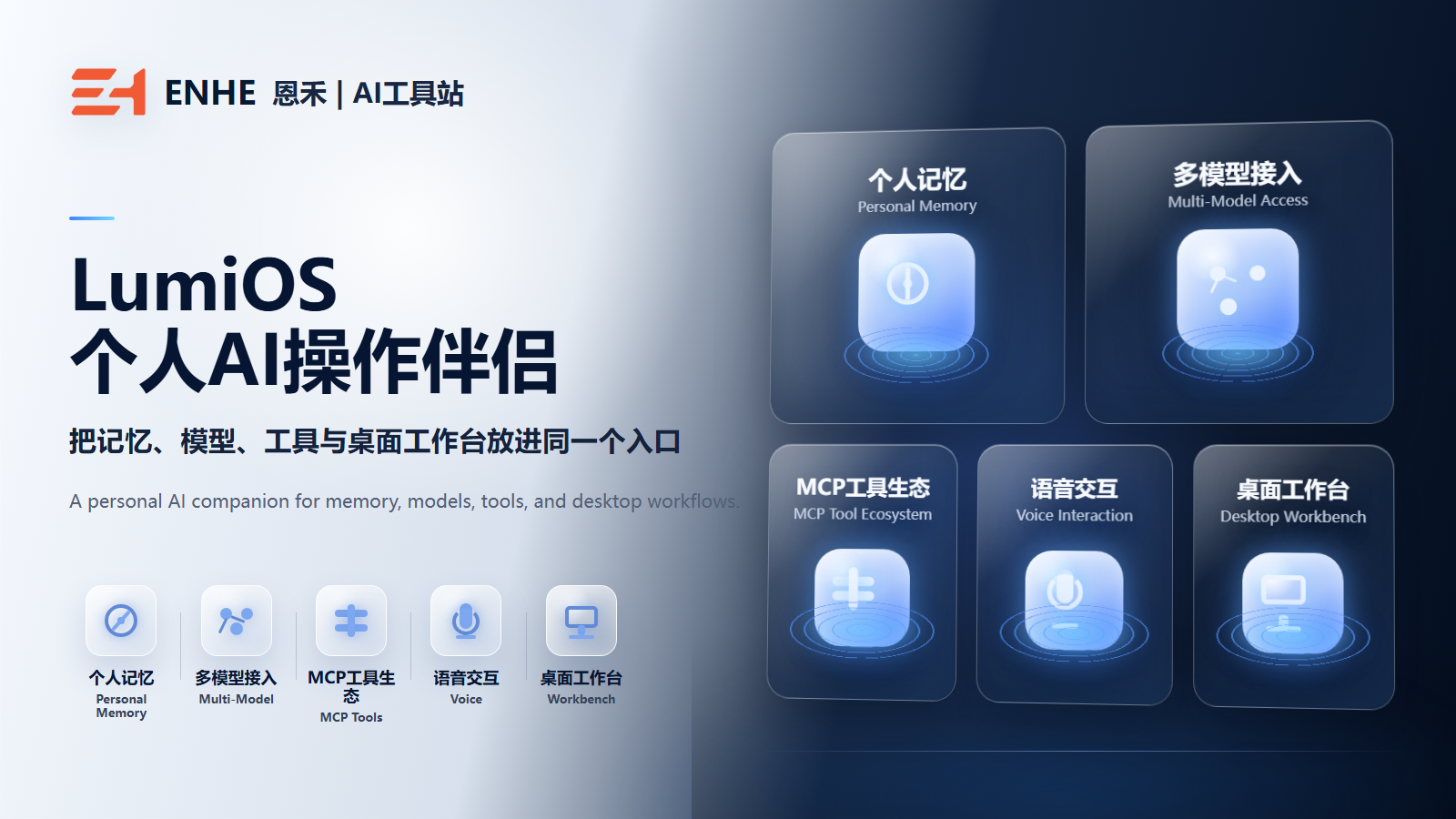
LumiOS is not another chat window. It is a personal AI companion that stays closer to your desktop rhythm, bringing memory, models, tools, and a local workbench into one entry point.
Version
3.0.4 public release
System requirement
Windows 10 / 11
Downloads
0
Uses
0
Version updates
2 recordsREADME v3.0.5
6/24/2026
[[zh]]主分支说明已推进[[/zh]][[en]]Main README has moved ahead[[/en]]
[[zh]]项目主分支 README 已指向 Windows v3.0.5,但公开 Release 资产当前尚未可访问;下载前请以官方 Release 页面为准。[[/zh]][[en]]The main README points to Windows v3.0.5, but the public release assets are not currently reachable; check the official release page before installing.[[/en]]
Windows v3.0.4
6/23/2026
[[zh]]当前公开下载版本[[/zh]][[en]]Current public downloadable release[[/en]]
[[zh]]GitHub API 当前可验证的最新公开 Release,包含 Windows 安装包、ZIP 包、发布说明和 SHA256 校验文件。[[/zh]][[en]]The latest public release currently verified through the GitHub API, with Windows installer, ZIP package, release notes, and SHA256 checksum file.[[/en]]
Before you use it
Review demos, requirements, version history, after-sales rules, and support before buying or using.
Demo/tutorial
Start with the written guide below to confirm the suitable scenario, access conditions, and practical usage steps.
System requirement
Windows 10 / 11
Version: 3.0.4 public release
Update log
2 records
Version updatesSupport contact
Tool introduction
Show tool features, usage scenarios, and key screens with product-style images.
Title
LumiOS Personal AI Companion
Introduction
LumiOS is built for people who want AI to become part of their daily desktop flow. Instead of keeping AI inside one-off Q&A, it brings memory, model choice, MCP tools, voice interaction, and a local workbench into one place so the assistant can stay with the context and the next action.
Detailed Introduction
The real fatigue for many users is not that AI cannot answer. It is that every new task, window, or tool asks them to explain the background again. LumiOS is designed around that friction: AI should feel less like a first meeting and more like a companion that gradually understands your working rhythm.
In LumiOS, models are not isolated entry points. You can start from cloud or local models and keep conversations, knowledge bases, RAG, tool calls, voice input and output, and canvas workbench activity closer to the same workflow. For creators, developers, operators, and heavy knowledge workers, that is more useful than adding another chat tab.
The point is not to pile on buzzwords. It is to reduce friction: less re-explaining, less switching between disconnected tools, and more continuity from thinking to doing. Start with research cleanup, writing continuation, project follow-up, knowledge-base Q&A, or a desktop execution task, then expand model and tool capabilities over time.
Core Capabilities
- Personal memory and personality: preserves preferences, context, and relationship cues so AI feels more like a continuing partner.
- Multi-model access: the official project materials list 11 LLM providers across China, international, and local model options.
- MCP tool ecosystem: 20 MCP skills and 26 built-in tool modules connect files, web tasks, code, PDF, image/video processing, and desktop automation.
- Voice interaction: supports TTS, STT, voice wake-up, and a more natural desktop interaction path.
- Local workbench: connects canvas, knowledge base, RAG, terminal, and desktop automation to move ideas toward executable steps.
Current Release Context
As of 2026-06-24, the latest public downloadable GitHub Release verified through the GitHub API is Windows v3.0.4, while the main README already points to Windows v3.0.5. The download entry on this page links to the currently reachable public release and can be updated again when the newer release assets are public.
Windows users can download the installer and configure at least one model source in the first-launch guide. macOS is still described as in development and testing guidance, with public distribution still requiring signing and notarization. Always confirm the latest official state on the GitHub project and release pages before installing.
Who It Is For
- Creators, writers, and researchers who are tired of repeating context.
- Developers and productivity users who want AI inside a local desktop flow.
- Operators who switch between models, knowledge bases, tools, and execution tasks.
- Heavy knowledge workers who want a long-term AI entry point rather than one-off answers.
Next Step
Start with one real task: organize research, continue writing, break down a project, connect a knowledge base, or complete a desktop action. Building one reliable path is more useful than turning on every capability on day one.
Tutorials
Each tool supports independent tutorials, ordered steps, images, and video links.
First launch: make one main path work
After downloading the official Windows installer, configure one model source you already understand.
Do not try to enable every model and tool on day one.
Confirm that the main workspace works first, then expand into voice, knowledge base, MCP tools, and desktop automation.
Notes
If Windows SmartScreen appears, continue only when the installer was downloaded from the official GitHub Release.
Common errors
A common issue is entering an API key but not saving or running diagnostics before trying to continue.
Use LumiOS in a real task, not just a test chat
Start with a task that has real context, such as continuing an article, organizing a project, extracting notes, or asking a knowledge base a set of questions.
What makes LumiOS useful is not a single impressive answer, but whether it reduces the cost of re-explaining context next time.
Notes
Gradually preserve preferences, long-term background, and repeated workflows.
Common errors
Using it only as a temporary chat box misses the main value of memory, tools, and workbench continuity.
FAQ
How is LumiOS different from a normal chat assistant?
A normal chat assistant often feels like a one-off Q&A window. LumiOS focuses more on continuity across memory, tools, models, and a local workbench so AI can stay closer to your desktop workflow.
What should I prepare before first use?
Prepare at least one usable model source. Start from a familiar cloud model API or local model option, complete the first-launch guide and diagnostics, then enter the main workspace.
Which version is currently downloadable?
As of 2026-06-24, the latest public release verified through the GitHub API is Windows v3.0.4. The main README points to Windows v3.0.5, but the matching public release assets are not currently reachable, so this page links to the available v3.0.4 release.
Who is LumiOS best suited for?
It is best suited for creators, developers, operators, researchers, and heavy knowledge workers, especially people who do not want to re-explain context and rebuild workflow state every time.
Is LumiOS fully offline?
LumiOS includes local workbench behavior, a local data directory, and local model options, but offline use depends on the selected model and feature. Cloud models, some voice features, and web tools still require network access and service setup.
User comments
Log in to comment.
Download link
This download-link content is shown only after server-side login and paid-purchase checks.
Download link content
https://github.com/hqwzhu/lumi.new/releases/download/windows-v3.0.4/LumiOS-Windows-3.0.4-x64-setup.exe
LumiOS-Windows-3.0.4-x64-setup.exe
Related tools

Mobile Chat Screenshot Maker No Code Required, Easy to Use, Ultimate Version
Value:Mobile Chat Screenshot Maker No Code Required

FaceSwap Studio Chinese Integrated Edition|AI Portrait Synthesis Research Tool
Value:FaceSwap Studio Chinese Integrated Edition|AI Portrait Synthesis Research Tool is an ...

AI Video Studio Omnipotent Edition | Local AI Video Workstation | Text-to-Video, Image-to-Video, Video Enhancement
Value:AI Video Studio Omnipotent Edition | Local AI Video Workstation | Text-to-Video